Encrypted Container


2023-11-21
There are multiple tools available to protect your secrets against different security threats.
Encrypting Data: FileVault
FileVault keeps your whole system storage encrypted, and decrypts it when needed. If your computer is lost or stolen, or it someone accesses your computer when you are not using it, your information cannot be read.
This feature is enabled automatically on newer Macs.
You should enable this feature
in  ► System Settings... ► Privacy&Security ► FileVault.
When you start up your computer, you give your password, and all the storage contents are accessible.
► System Settings... ► Privacy&Security ► FileVault.
When you start up your computer, you give your password, and all the storage contents are accessible.
If a Trojan Horse or other malware gets into your computer while it's running, FileVault doesn't protect your data. That bad software can watch what you do and steal the data as the computer runs.
Encrypted Containers
This section has not been updated to macOS Ventura yet.
If you have data that you want to keep safe in case an unauthorized person ("Bad Guy") gets into your computer, you can create a file with your credit card numbers and other private information, encrypt the file, and only decrypt it when you need to use or update the data. You can safely store this file on another device, and the contents can't be read without decrypting the file. I protect my valuable data by keeping it in an encrypted container. There are several ways to do this:
Ways to Encrypt Data
-
Encrypted disk image file. A disk image is a file that Mac OS can mount as if it were a disk; you often see these when you are installing new application software on your Mac. You can create a disk image that is encrypted with a password: when the system tries to mount the file as a volume, it requires that you type the password.
To create an encrypted disk image, start Disk Utility and click or .
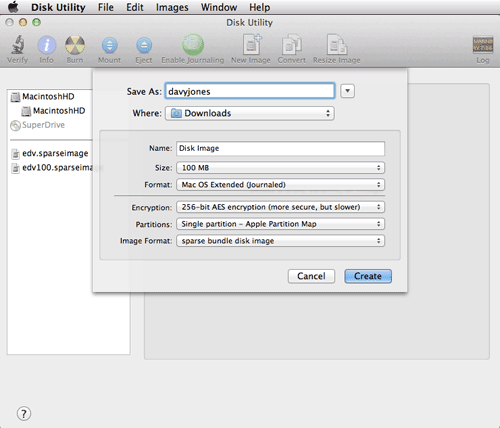
Create a new sparsebundle file, minimal size, encrypted.
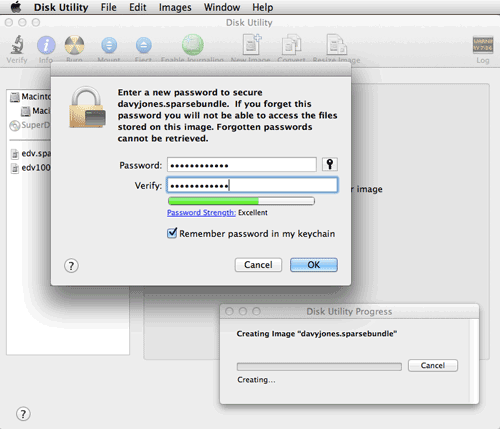
Choose a strong password, and don't forget it.
Double clicking this image file will require the password to mount it: then it looks like a mounted disk that you can put private files in. You can open Finder windows on the mounted disk, drag files to the disk, edit files, and so on. (Select and make sure is checked so you can see the volume in the Finder.) Dismount the image by clicking the eject icon ⏏ in the finder sidebar, and your files are secured. You can copy this encrypted file somewhere safe, like onto a CD, to create a backup of your important data that can be read on any Mac.
-
Encrypted external device. You can use Disk Utility to set a password on an external hard drive or Flash drive. Use , then enter a password and select .
Or you can use and choose from its top bar. Then select and and choose a password.
In either case, when you subsequently mount the external drive, you'll be prompted for the password.
-
Encrypted files. Various software programs can read a file and write out an encrypted version. Such a file looks like gibberish until it is decrypted.
-
Zip files are available on PCs, Macs, and Unix machines. They contain multiple component files. When you create a Zip file, you can create it so that you need to supply the password to read or write its contents. ("Legacy Zip" file encryption was broken, and could be cracked easily. This was fixed in 2013 (Mavericks) when AES support was added.)
to unzip: unzip -P userpass PASSFILE.zip
to zip: zip --password userpass PASSFILE.zip PASSFILEThere are tools you can obtain on the Web that will try to crack open password protected Zip files by guessing the password. If you pick a strong password, this should not bother you. See below.
-
There are other tools similar to Zip that some folks prefer: 7Zip is available online; RAR can be installed using Homebrew.
-
PGP. PGP (Pretty Good Privacy) is available (free) on PCs, Macs, and Unix. It is oriented toward expert users. You can use PGP to encrypt and decrypt a text file.
-
OpenSSL, which comes with the Mac, allows you to encrypt and decrypt files, but doesn't provide mountable containers. You use these more like you do Zip files.
-
Other Encoded files. TrueCrypt is free software that works on Mac, Windows, and Linux, and provides mountable volumes; its website barely mentions the Mac though.
-
Other Applications That Encrypt Their Files. Specific applications and subsystems have their own privacy measures for the specific data formats they support. Notes.app, PDF files, Google encryption, TurboTax ...
-
Strong Passwords
It doesn't matter how strong the crypto is, if you encrypt under a password that is easy to guess. Studies have shown that many passwords are "12345" or "password" so these are some of the first guesses made by programs that try to guess a password by "brute force" guessing.
One way to make guessing more difficult is to use a bigger set of choices: longer passwords, more possible characters. I made my very old password generator into an iPhone App and a web page addition. We should do better than passwords.
Randall Munroe wrote a great comic about Correct Horse Battery Staple. He wrote, "Through 20 years of effort, we've successfully trained everyone to use passwords that are hard for humans to remember, but easy for computers to guess."
For more security advice, see the Security article.