Photos


2024-03-30
The Mac is a good tool for processing, storing, and displaying pictures.
Acquiring Pictures
Digital Cameras
For pictures I take on my iPhone, I send photos to my Mac using AirDrop. Clicking lets me copy some or all to the Imports album. I used to attach the phone to my Mac with a USB cable, and them use the Photos to import the ones I wanted.
Some people just email their photos to themselves from their camera and save them on the computer using Mail.app, and then import them into whatever photo processing software they use.
I have a Sony Alpha camera that used to send its pictures to my Mac via Wi-Fi, but Sony stopped supporting the software that does this. Now I have to use a Sony to USB cable to mount the camera as a storage device on the Mac, and then launch the Mac Image Capture application (I have a link to it in the Finder sidebar) and then Import photos to the Mac's Pictures folder. From there I can import the files I want into Photos.
For photos from digital cameras, I can plug a camera's CF or SD card into a USB reader and use the Finder to drag the photos to the Pictures folder.
No matter how I move the pictures, I check the photo files on the Mac using Quick Look to make sure they got stored correctly on my Mac's disk, before I delete them from the device.
Scanning
I have scanned old pictures, both slides and flats, using an Epson 4490 scanner, and had good results. I use the wonderful program VueScan to drive the scanner. It takes time though -- between 5 and 10 minutes per picture. There are many settings and adjustments possible with a scanner, and it takes time to learn how to do a good job.
Commercial Scanning to CD
In the 90s I sent hundreds of slides to Kodak (remember them?) to be scanned onto PhotoCD.
In the 00's, I sent hundreds of slides to  ScanCafe.com,
who scanned them to disc in India at a low price.
That was very satisfactory.
ScanCafe now does its scanning in the USA, which should provide faster turnaround.
I have also sent many snapshot pictures from my old albums to ScanCafe for scanning to CD.
ScanCafe.com,
who scanned them to disc in India at a low price.
That was very satisfactory.
ScanCafe now does its scanning in the USA, which should provide faster turnaround.
I have also sent many snapshot pictures from my old albums to ScanCafe for scanning to CD.
For all these cases, I then copied the photos from picture disc to my Mac.
Once Pictures are on the Mac
Never have only one copy of a file you care about: back it up. Best to have several backup copies in different places.
I have a directory which contains all the original picture files from the camera, in subdirectories named things like Nikon28, Nikon29, etc. When a directory gets near to 650MB, I burn it to CD-R and start a new one, in addition to all other backups I do. If I take a trip and have a lot of pictures that go together, sometimes I will burn a DVD+R or even a DL disc. I save these discs in a box; they should last for a long time. My idea is to have a read-only backup copy before I start changing things. (I took a really great picture in 2001, and while trying out filters in Photoshop, accidentally hit SAVE, and destroyed the original.)
I make original files read-only just after I copy them to my Mac. The idea is that my original should never be changed.. always work on a copy, so if I screw up or change my mind, I can recover.
When you get your pictures onto your Mac, you will want to do a few things.
- Pick the pictures you want to keep. Get rid of bad pictures and choose the best shots.
- Fix up the chosen pictures a little: straighten them, crop out irrelevant parts.
- If a picture is too dark or light, you may be able to fix it.
- Resize the picture for where it will be displayed.
(If you are displaying pictures on a Web site, you may discover that images look blurry on high DPI displays unless you use more pixels; the linked article describes how to do this.)
Preparing Pictures for Web Display using Photoshop or Affinity Photo 2
Adobe Photoshop is the most powerful tool for working on photo images, but it's expensive.
I bought Affinity Photo 2 as an alternative to Adobe Photoshop,
and Affinity Designer 2 as an alternative to Illustrator.
These products work well for me, and are less expensive than an Adobe subscription.
Affinity was just sold to Canva in March 2024. Canva has committed to not changing over to subscription licenses. Hope this holds up.
I wrote a cookbook for preparing photos for the Web using Affinity Photo.
I am still learning how to do this well.
(GIMP is another free alternative to Photoshop. Acorn is another photo editor for Mac, costs $29.95 one time.)
Preparing Pictures for Web Display using Apple Photos App
The Photos app on Mac or iPhone is an alternative way to prepare pictures for display. Here are the steps I take on almost every photo. (Look at the picture as you go, and undo anything that makes it worse.)
- Straighten the picture and crop off unnecessary or distracting parts.
- If the picture is in landscape format, try cropping it to the display's proportions. For the Mac Mini on an HD TV, I use 16:9.
- Click the "magic wand" tool and see what it does. Often this is all I need.
- For display on the living room TV, I often punch "Contrast," "Definition" and "Saturation" up a little... this depends on the display.
- Sometimes the Shadows tool helps emphasize what I want the picture to show.
- The "Definition" slider sometimes helps make pictures look crisper. "Sharpen" rarely helps my pictures.
- The "magic wand" tool often increases "Brilliance" by brightening dark areas, decreasing highlights, and increasing contrast. Often the result is worse to my eye, so I usually adjust "Brilliance" back to normal and increase "Contrast" and "Shadows" instead. This adjustment works for my taste and my devices; try different adjustments for your needs.
Displaying Pictures on the Web
Here is a good article by Adam Engst on photo sharing services. Thoughts on Sharing Vacation Photos.
There are many web services that allow you to share pictures on the World Wide Web. Here are some choices you have to make:
- do you want to share pictures with everybody in the world, or only with people you choose?
- do you want free storage, or are you willing to pay?
- do you want to write your own picture captions?
Web photo services come and go. I know people who put their photos on a "free" service that later started charging for storage, or shut down completely.
Here are a couple of sites: search the web for more.
- Google Photos. 15GB of storage free. Pay for more, or pictures bigger that 16MP.
- Amazon Photos. 5GB free for Prime members. Pay for more.
- Flickr. Free for up to 1000 pictures, then $5/mo
- Apple iCloud. 5GB free, pay for more. Integrated with Photos app.
Displaying Pictures on my Personal Web Site
When I started keeping online photo galleries in the 90s, there were few choices, so I built my own gallery generator. I have a private area on my website that needs a password to enter. (Strangers, and Google, can't look at my pictures, so my friends don't need to worry that their picture will end up on a billboard advertising something.)
My site has over 80 galleries containing over 7000 pictures. For each picture I add, I make an entry in a text file with a caption and the filename, and copy the photo to a web directory. Then I run programs to generate web index files and thumbnails on my personal computer, and check them before I push the web index files and the photos to the private site. This setup means that I have to update my tools when browser or web technology changes. On the other hand, I control the privacy of the pictures and can improve the site whenever I want.
The galleries I generate use CSS Sprites for fast loading, and use the practices described in High DPI Pictures to make sure that photos display crisply on modern screens.
Displaying Pictures on a Mac using the Photos App and Screen Saver
I set up our living room computer, a Mac Mini, to show photos at random in the screensaver from a large collection. I use Photos to manage the picture library. I copy images into the Apple Photos app for display on the Mac.
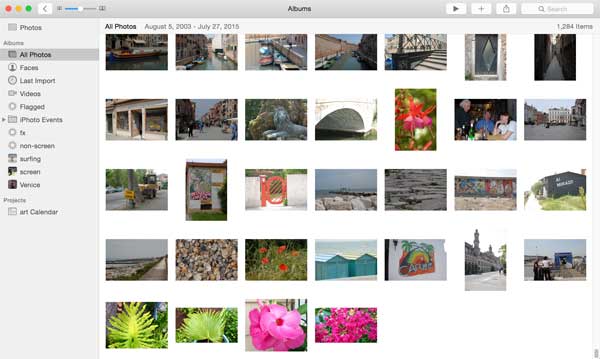
On the living room computer, I have thousands of pictures in the Photos application. For each picture I add, I edit and straighten and crop it if necessary. Since the display is an HD TV, I try cropping landscape photos to 16:9 if the picture can stand that: doing so will eliminate black space at the sides or top of the screen. Then I follow the steps described above to improve what I can.
I add pictures to a Photos album called "screen" if they should be in the random screensaver.
(I have set up a $200 Raspberry Pi computer to do the same thing: random photos, random music tracks. I think you could do all of this with a Windows machine, haven't tried.)
Bugs in Mac Photos
Photos continues to improve with each macOS release, but still does some functions in idiosyncratic and undocumented ways.
Here are a few bugs that bother me.
Problems Naming People's Faces
Photos appears to try to do face recognition and geolocation assignment to my photos in the background when the app is not running. I have seen processes in Activity Monitor that seem to be doing this, but never found any explanation of how it works or when. I don't know if they are sending my data to Apple. The face recognition is often wrong, and the interface to it is comically bad:
-
The "People" or (Faces) view of Photos has many problems.
- The pictures I find by searching for a person are not the same set as those findable from the People page.
- The list of People is not in alphabetical order.
- The face finder of the Photos app runs in the background when Photos is closed. You never know when it is finished.
- The face finder of the Photos app marks some random squiggles as a face, and names it "unnamed." There is no way to get rid of these.
- The face finder of the Photos app sometimes identifies random squiggles as a face, and names it "unnamed." There is no way to get rid of or hide these.
- The face finder of the Photos identifies the faces of random passers-by, or faces in a painting or sign, and names them "unnamed." There is no way to get rid of or hide these.
Poor Slideshow Generation Interface
In Photos, there are two ways to display a slide show of a group of pictures: you can right-click on a folder name and select "Play Slideshow", or you can select which will create a "Project". Folder slideshows play music during the slide show, and there is no button to turn the music off or control inter-slide timing. You can turn the music off for a project slideshow, by clicking a music-note icon on the project, and hovering the mouse over the selected music until an invisible button with an X becomes visible, and clicking it.
Problems Generating Slideshows
Photos 8.0 in Ventura is unable to generate slideshows. It says I don't have an Internet connection. I do though. My theory is that some photo file is damaged, and Photos crashes trying to open it, and prints a mistaken error message.
Problems with Places
Photos taken with a phone are sometimes tagged with a geographic location: Photos uses GPS data if a photo has it. Some photos that were taken way before the invention of GPS have locations assigned also: I can't find any explanation of how it does this. It appears that the locations were obtained from other people's photos of the same subject. Also, there are many different names given to the same place: for example, 14 photos taken the same day were labeled "E 9th St" (no city indicated) when they were taken at many different streets, none at 9th St. Why be so specific with wrong data?
Problems with Photos on High Sierra
For operations in Photos that take a while to complete, such as using to export pictures, there is a very tiny progress indicator, different from the progress indicators of all other Mac apps.
Photos has exhibited picture corruption issues on my Mac Mini: sometimes a rectangular selection of an edited picture is replaced by garbage or a black box. The original is undamaged. I have seen this in Sierra, High Sierra, and Mojave. (Cannot run Ventura on my Mini.) Re-editing the photo and re-saving it fixes it. It may be because of a hardware problem with the graphics chip on my 2012 Mac Mini. Others have seen this problem but there has been no resolution, and no acknowledgement from Apple.
Problems with Photos on High Sierra and iCloud Photos
I can use Photos on the Mini with High Sierra, connected to iCloud. If I add an image to Photos on my laptop, the image will be uploaded to iCloud photos just as they promised. My Mac Mini downstairs will then notice the new photo and download it into Photos, just like they said.
If I edit a photo in Photos on the Mini, things are not always so nice. Sometimes it works, and the change I made is uploaded to my iCloud photo library and then synced onto my laptop. Sometimes this doesn't work though. I recently did such an edit, to fix the picture corruption bug discussed above. I edited the file, re-saved it to get rid of the black box, and saved the edit. Things looked fine in Photos. Then I decided to quit the Photos application, and got the error message that "previews are being generated for some of your items, do you want to wait?" I said "wait" and waited for over an hour. Trying to quit Photos got the same error. On the bottom of the Library window, there was a message that Photos was waiting to update a file. I tired choosing "wait some more" but it never cleared up. I tried choosing "exit anyway" and it hng. Finally I had to kill the Photos application with cmd-opt-esc. I started Photos later and the stuck updates were gone.
Photos Wish list
In OS X El Capitan, the ability to add "extensions" to Photos was provided, and there are some available in the App Store. A few things I would really like:
- Ability to perform new transforms on pictures, such as Lens Correction.
- Better annotation of pictures, automatable, e.g. connect to a database.
- A better progress bar for long-running operations, and a signal when they finish.
- Counts of the number of items in each folder in the sidebar, like iPhoto.
- Ability to define macros and apply them to whole collections of pictures.
- Conditional operators in macros, e.g. "If I have not repaired this picture, repair it."
Storing Photos in iCloud Photos
Apple has a product called iCloud Photos. Here is how I employ it.
- Add your photos to the Photos app on your computer.
- Get an Apple ID. You probably have one for your computer. Every Apple ID account comes with 5GB of cloud storage free.
- If you are going to store a lot of pictures, you can increase your iCloud storage for a monthly fee:
Visit
 ► System Preferences... ► Apple ID ► iCloud ► Manage ► Change Storage Plan and
select the amount of storage you want.
► System Preferences... ► Apple ID ► iCloud ► Manage ► Change Storage Plan and
select the amount of storage you want.
- In Photos, select .
- Click and click the checkbox .
- You have a choice of or . Pick one.
-
Wait.
Your Mac will send all the photos in your Photos library
to your iCloud account; you can log in to https://icloud.com with your Apple ID and view them in the Photos section.
Sending the photos might take a while if you have a slow connection. Mine took overnight.
- If you previously edited the photos in Photos, the edits will be uploaded, along with
- Keywords
- Face names
- Locations
- Albums and Slideshows
- You may find that some iPhoto Albums have been changed. I had an Album named "screen". After going through this setup, many photos were removed from "screen." I had to add them back. Grrr.
- If you previously edited the photos in Photos, the edits will be uploaded, along with
- If you connect your iPhone to your computer while you are editing Photos, all your iPhone pictures will be slurped into your iCloud account. They should ask.
-
Once your Photos library is in the cloud, you can go to another Mac that shares the same Apple ID,
and point its Photos app at the (same) iCloud account.
Once you do this, the old Photos library on your Mac will be gone.. so save it first.
- Wait. Your second Mac will download a copy of the iCloud Photos library.
- The downloaded library on the second Mac will have the same photos and attributes as the first Mac.
- You can now edit pictures in Photos on either machine and both will see the changes.. after some delay.
- If you add a picture on any device, the iCloud copy should be updated, and the other devices should see it.
Things I don't know about yet.
- how do I connect this library to my iPhone, and how do I NOT connect it if I don't want to.
- what happens to the old pictures on my iPhone.. are they lost?
- is there any way to have some pictures only on one device?
- There is an iCloud Family feature that lets up to 6 family members share an iCloud account, how does that work?
- There is an iCloud feature that lets you send and receive links to photos in your iCloud account, how does that work?
Beware of Accidentally Wiping Out All Your Photos
A sad story in MacInTouch by a user who created a new empty library and then marked it "Use As System Library." They thought this would download all their photos from iCloud. Instead, it deleted all the photos from their iCloud library and then synced the empty library to all their other Macs. They lost over 5000 pictures and had no backup. They had no local copies because they had turned on "Optimize Storage."
- Always have more than on backup. Make sure you have some backup on an external drive or even CD-ROM.
- Don't assume that you know what a feature will do.
- Don't turn on "Optimize Storage".
Other Bugs in iCloud Photos
On my Mac Mini,
Screen Saver
In the old days, I took a lot of pictures, and put them in albums that sat on a shelf, and very rarely looked at them again. Now I set the living room TV to show pictures at random, from thousands of travel and family photos, by connecting the TV to a computer. (I think an AppleTV could do the same sort of thing.)
Currently I view my Mac photos on the living room TV via the photo Screen Saver on the Mini. I use the "classic" saver on the Mac. I set it to display pictures from the Photos folder "screen", and drag screensaver-worthy pictures into that folder in Photos. Since my Mini is so old that it cannot run Mojave or later versions of macOS, if I want to go back to review a picture, the left and right arrow keys on the keyboard will sequence through the Screen Saver display. (I also changed /System/Library/PrivateFrameworks/Slideshows.framework/Versions/A/Resources/Content/EffectDescriptions.plist in macOS to make the pictures stay up more than 5 seconds.)
If I ever get a new Mini that can run a post-High-Sierra version of the OS, the arrow keys will no longer work, and the Screen Saver duration patch will be different if it is possible at all. macOS Sonoma has a new fancy screen saver that has restored the ability to choose a Photos Library as a screen saver source, but it does not have a setting for how long each image is dispayed: you get four seconds. The arrow keys and space bar cause this builtin screensaver to exit, instead going forward or back or pausing. Disappointing.
ArtSaver
I experimented with a third party screen saver, "ArtSaver" by Gabriel Zachmann. I tried it out on the Mini running High Sierra. It has some nice features:
- can display captions from the "Caption-Abstract" field
- duration is controllable without patching
ArtSaver can display the geolocation for pictures, but many of my old photos don't have that data, and the photos that do have it often say just "United States" or have crazy mixed languages, like "Venezia, Italy"/ I think I will copy the files for screensaver display to a new directory, strip out the GPS data entirely (using exiftool), and add captions that actually say what I know about the photo. Gabriel was very helpful in teaching me how to use his program. ArtSaver can run as an official screen saver, so it can lock the screen, but using it this way means it cannot obey the arrow keys or hot corners.
Printing Photos
Sometimes you want to actually print a photo and hang it on the wall. This is a vast subject and I have just begun to learn how to do it well. I have been satisfied by prints I had made at FedEx Kinkos and Bay Photo.
Metal Prints at Bay Photo
I have been very pleased with prints on metal made at bayphoto.com https://www.bayphoto.com/. Just go their website and you can upload your pictures and place an order. I have made them sizes like 16x24 inches, and chose "MetalPrint" with "Performance EXT metal - high gloss." I asked for rounded corners and float mount hangers. These photos stand up to outdoor use, sun and rain. I take them inside in the winter.
Poster Prints at Kinko's
For indoor use, I have prepared photo files for printing, copied them onto a flash drive, and taken them to Kinko's and make "poster prints." Here are the preparation steps I take:
- read JPEG or HEIC file into Affinity Photo
- Straighten and crop
- Resize
- set units to inches, choose size, e.g. 36in x 16in
- bicubic, resample
- resize
- Use Curves to correct contrast and brightness. I want it to pop.
- Use Vibrance to increase saturation.
- Use Sharpen: unsharp mask, and Sharpen: Clarity
- Export as PDF
- e.g. 3456x1537px
- PDF for printing
- raster DPI 300
- comes out as 96 DPI
- whole document
- Copy the PDF to a USB stick, take to Kinko's. Takes a few days.
Pretty big pictures are not too expensive.
Future
Raw Format
One thing I have not gotten into is shooting in RAW format. This makes bigger disk files but would mean I could adjust a lot of things like white balance later. The real experts, who spend a lot of time making their pictures perfect, shoot RAW. It is especially important for photos that will be printed on paper.