Lesson One


2023-11-08
Updated 2023-11-08 for Ventura: change Preferences to Settings
You took my advice and got a Mac. Now what? This note is intended to be used with the help of an experienced Mac user, as a kind of guide to discussion topics.
See Essentials for a list of next things to buy or install.
For Apple basic tutorials, search Google. There are YouTube videos. Apple seems to have eliminated its tutorial web pages.
Lifehacker published a useful web page on how to  Set Up and Get to Know Your New Mac, with lots of links, in 2012.
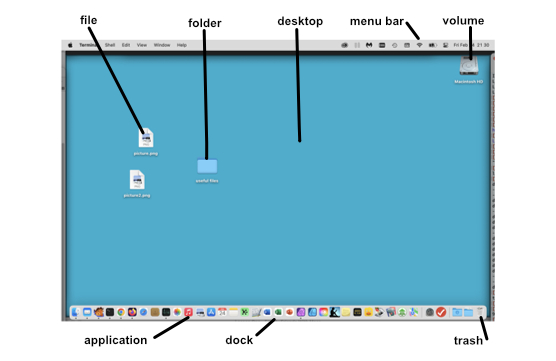
Essential concepts:
- Desktop. What you see on the screen when the computer starts. It shows icons for files, folders, and volumes and has a background picture.
- Dock. The strip holding application icons along the bottom of the desktop.
- Application. A program you can run to do something for you.
- File. Stores information.
- Folder. Holds files and folders. Sometimes called a "directory."
- Finder. An application that lets you see what is in folders and files, and search for things on your hard drive.
- Menu Bar. The strip of words and icons across the top of the screen.
- Volume. Your hard drive is a storage volume. You could attach more volumes to your computer, or partition a disk into more than one volume.
Basic concepts (mouse, cursor, folders, etc) are well explained at Apple's Mac User Guide.
How to shut down
Use "Shut down" from the apple menu. (Don't just power the computer off; you can damage files.) Putting the computer to sleep is not the same as shutting down. See "Sleep and Shutdown".
To force a shutdown, if the computer won't shut down normally, hold the power key down for 10 seconds.
Running Applications
Applications are programs that run on your computer and do something for you. Many applications can be running at the same time. You tell what applications are running by looking at the Dock: the running applications have a dot below their icons. One application is "in front." It has its name next to the apple in the menu bar, and its menus are shown to the right of that. You can switch a different application to the front by clicking on its icon in the Dock. When you do this, the windows for that application come to the front.
Your Mac comes with a lot of applications. Apple has nice web pages about some of them.
The Finder
The Finder is an application that is always running. It gives you a view of the files that are stored in your computer's file system. The Finder also lets you search for files. Type some text in the search box in the upper right and you will see a list of files containing the text; or type some text, choose "Name matches" in the dropdown, and you will see a list of files with that text in the name.
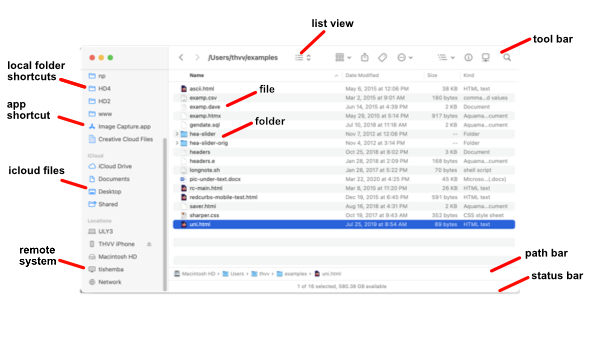
To dismount an external drive without damaging it, click the eject button (⏏) next to the drive's name in the Finder's left sidebar.
Menu Bar
- The apple menu
- name of frontmost program, and its About, Preferences, and Quit
- frontmost program's menus: File, Edit, ... Help
- keyboard shortcuts e.g. ⌘Q, ⌥⌘H
- switching between running applications with ⌘Tab
- other menubar widgets (icons): TM, Bluetooth, keychain, Wi-Fi, iChat, sound, keyboard, battery, time, spotlight

Application Switching
Make another app become frontmost.
- Click on icon in the dock.
- Switch between running applications with ⌘Tab
- Hide current application with ⌘H
Window Switching
Many programs show multiple windows
- Switch between windows with ⌥` (option-grave)
- Select the desired window from the Window menu
Running an Application
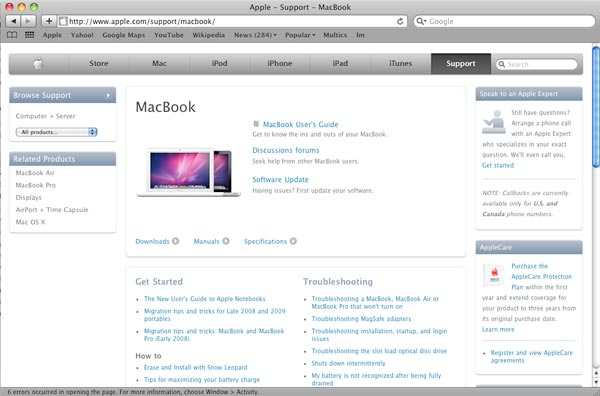
Click on the icon for Safari in the Dock. It will open a window if your connection to the Internet is working.
picture not updated for Ventura yet.
-
In Safari, go to https://www.gmail.com and click .
Go through the signup. Then set up a bookmark for your mail, in your Safari Bookmarks bar.
- Or, launch Mail and configure it to fetch your mail from your ISP (you'll need the mail details).