Lesson Three


2023-11-08
Customizing Your Mac
There are a lot of adjustments you can make to the way your Mac works. Sometimes it is wonderful to be able to make the computer do something you want, or not do something you hate..
If you overdo customization, it can eat up a lot of your time and become a maintenance nightmare.
This lesson is oriented toward OSX 13.0, Ventura.
System Settings
"System Preferences" was renamed "System Settings" in Ventura and thoroughly reorganized.
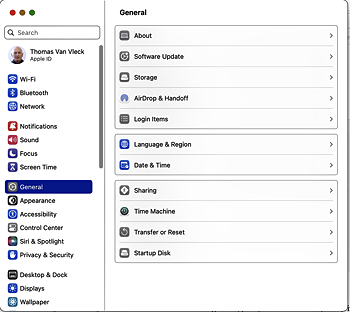
Select  ► System Settings....
You will see a left sidebar with little icons and setting topic names.
Click each one and the right side of the page will show a pane with controls for settings you can change.
There are about 400 setting items that will make your Mac work differently.
Often the default values are fine.
(When you finish with one topic, click the next icon in the list of topics.)
Some settings can be made from more than one topic pane.
► System Settings....
You will see a left sidebar with little icons and setting topic names.
Click each one and the right side of the page will show a pane with controls for settings you can change.
There are about 400 setting items that will make your Mac work differently.
Often the default values are fine.
(When you finish with one topic, click the next icon in the list of topics.)
Some settings can be made from more than one topic pane.
(Apple uses the term "password" for at least three things: your Apple ID password, User ID password for each account on the computer, and passwords that browsers remember for individual web pages. You have to figure out by context which one is meant.)
- The first confuration topic configures your Apple ID, your account with Apple: your personal name and address, Apple ID password, credit card, and the devices registered to your ID. The stuff about a "Legacy Contact" is ... something to think about later.
- Wi-Fi: If you connect your machine to the Internet using Wi-Fi, pick your network here, set up its password, and set its DNS (see Network).
- Bluetooth: Turn this ON if you use it. Often this is for wireless keybards and mice.
- Network: How your computer connects to network devices. Click on one to see its parameters. Set your DNS servers for Ethernet and Wireless to 8.8.8.8 and 8.8.4.4; or 208.67.222.222 and 208.67.220.220; or 9.9.9.9. The Firewall should be turned ON: the options are pretty advanced.
- Notifications: .. I silence most notifications.
- Sound: Set your alert sound, choose your speakers.
- Focus: You don't need to set this up till you need it. I don't know what this does. I never use it.
- Screen Time: You don't need to set this up till you need it. I don't know what this does. I never use it.
-
General: This topic contains 11 sub-topics. A lot of them are important. Some are surprising.
- About: your computer: its Name, chip, memory, serial number, AppleCare status, OS version, displays. Here is (one place) where you can set the network name of your computer ... see Sharing.
- Software update: When Apple has a new version of system software, come here to install it. I do not let Apple install new versions of the OS or application updates from the App Store automatically, because I like to wait a few days after it comes out, to see if other users have problems that might affect me. On the other hand, I do let Software Update install urgent security fixes.
- Storage: shows what's stored on your computer, and lets you turn on "Empty trash automatically," bad idea. Turning on "Store in cloud" might delete files from your computer because "iCloud has them." I think this is risky.
- AirDrop & Handoff: I turn OFF "Allow Handoff between this Mac and your iCloud devices." I don't want my computer to start getting phone calls, or my cursor to run off my screen and onto some other device I own.
- Login Items: this sub-topic sets up programs to be run when the current user logs in, and lists programs than can run in the background.
- Language & Region: Set your language(s), time and number formats, measurement units. Here is where you can enable Live Text, which recognizes text in a picture (only works on new Macs).
- Date & Time: You probably want to "Set Time & Date Automatically" and set the time zone too.
- Sharing: What your computer can do with other computers. I turn ON Screen Sharing, File Sharing, and Remote Login; others OFF. This is another place where you can change the network name of your computer: name your computer something short but distinctive, with no spaces or special characters.
- Time Machine: Set up an external disk and tell Time Machine to back up to it.
- Transfer or Reset: useful if you sell your computer.
- Startup Disk: useful if you are booting from an external drive.
- Appearance: Twiddle with colors and scroll bars. (I was taught to read black letters on white.)
- Accessibility: A collection of settings for adapting the Mac interface for different abilities. Vision, Hearing, Motor, and General settings.
- Control Center: You can tailor which icons go in the menu bar. I like to flash the time separators: if the machine freezes they will stop flashing.
- Siri & Spotlight: turn Siri on and off -- I leave it off; tell Spotlight what to search for.
- Privacy & Security: you should turn on FileVault. You can control which applications can use your private data. You can allow applications not downloaded from the App Store. Also you can turn off Apple Personalized Advertising. Under Privacy: Location Services: System Services you can uncheck "Location-based Alerts" if you object to being tracked. It is not clear if these are ads or what.
- Desktop & Dock contains a section on Mission Control: Hot corners and Shortcuts. I set upper left to start the screen saver, upper right to prevent it. You can customize Stage Manager and Mission Control if you use them.
- Displays: On a small screen, I choose to make text a notch larger. Display brightness and color can adjust depending on ambient lighting. Under "advanced," you can allow usage of a nearby iPad.
- Wallpaper: Choose a color or a picture for wallpaper. Optionally "rotate" among several images.
- Screen Saver: Choose a source if images and a way to display them.
- Battery: Show battery history and health.
- Lock Screen: HERE is where you set the delay before the screen saver starts, and when the machine goes to seleep, and so on. Set it so that iv the screen locks, a password is always required. Set a message when the screen is locked.
- Touch ID & Password: This topic is where you set the user account password for the current user of this computer. (You can also change account passwords for any registered user from the Users &Groups topic.) If your computer supports Touch ID, here is where you put in your fingerprint, and set which things can be unlocked with it. I guess that if you have multiple user accounts on a computer, you have to switch users to set up Touch ID for each.
- Users & Groups: This topic lets you add, delete, and manage user accounts on the computer. Laptops should have a password. You can specify whether a user account can "administer this computer" meaning add and delete users, install software, change security, etc. There is a switch for "automatically log in as" which I never set. If the computer is used in a corporate environment, you can set "Network Account Server" to use centralized user ID and password management, like Active Directory.
- Passwords: these are the passwords for various web sites that the Safari browser has memorized for you. Nothing to do with logging in.
- Internet Accounts: Another way to get to the iCloud pane. Also mail server addresses for each mail address.
- Game Center: I don't use it, can't help you.
- Wallet & Apple Pay: you can input your credit card and your shipping address.
-
Keyboard:
- Personally I hate the CAPS LOCK key: it does nothing but cause me trouble. So I click and set it to No Action.
- Select the Text:Edit button and turn off "Correct spelling automatically," etc, in the popup to avoid comical mistakes.
- I turn off "use smart quotes and dashes" because it screws up writing web pages.
- Mouse: I turn "Natural Scrolling" OFF. It is not "natural" to me.
- Trackpad: (on laptops). Learn multi-touch. I turn "Natural Scrolling" OFF.
- Printers + Scanners: Add your printer (see Lesson Two).
Dock
The Dock shipped with the OS has a lot of apps I don't use, so I take them out. Then I add Mac utilities I use a lot, such as Terminal and Activity Monitor. Then I add tools that I use often, such as Chrome, Firefox, Aquamacs, Cyberduck and Word.
Terminal
I set the font for Terminal windows to Monaco 12, anit-aliased. I define a standard window group I use at startup.
Your Home direcdory
See the Programming Tools page.
Web Browsers
In Firefox, Chrome, and Safari, I make a folder in the bookmarks toolbar called "daily" (by using ) and add my everyday favorites to it. Every morning, I click on the folder and select to open all the listed sites, each in its own tab.
Safari has removed the "Open 'safe' files after downloading" option. It was a dangerous feature.
Safari, Chrome, and Firefox support plugins, which you can add to your browser to change how it does things. For Firefox, I have installed:
- uBlock Origin: strip out ads and malware from web pages. Also works on Chrome.
- Web Developer: tools for testing and debugging web pages.
- NoScript: don't run Javascript unless I permit it.
Finder Settings
It is useful to make a few changes from the default in Finder Settings.
- In "General," I choose "show all extensions" so that file names will show the full name of the file, e.g. "Mail.app" instead of "Mail".
- In "Sidebar," I enable a lot of items and set the sidebar and status bar to show.
- In "Advanced," I also disable the trash warning, to suppress a dialog box every time I try to empty the trash.
- I select "Customize toolbar" and add the "Path" widget to the Finder toolbar: it is helpful when you have several windows open and forget which is which, e.g. is this on my computer or a remote computer on my home network.
Normally, Finder does not show files whose name begins with period (.). This is a convention inherited from Unix. If you are viewing a particular folder and want to see all files, no matter whether they are hidden or not, just type ⌘Shift . Type it again to hide them. If you want the finder to always display hidden files, execute the folowing command in a Terminal window:
defaults write http://com.apple.Finder AppleShowAllFiles true
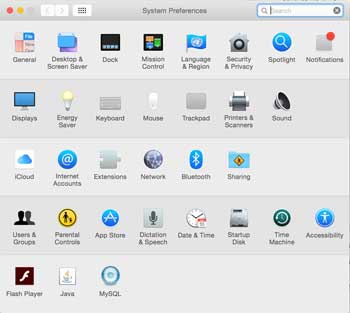
Pre-Ventura System Preferences
Here is what System Preferences looked like prior to Ventura.